PDF Translation Tool: Convert PDFs to Traditional Chinese While Preserving Formatting
Case Details
Introduction
Have you ever needed to translate a PDF document to Traditional Chinese but found that standard translation tools strip away all the formatting, fonts, and layout? Manual translation is time-consuming, and copy-pasting text into translators loses the original document structure.
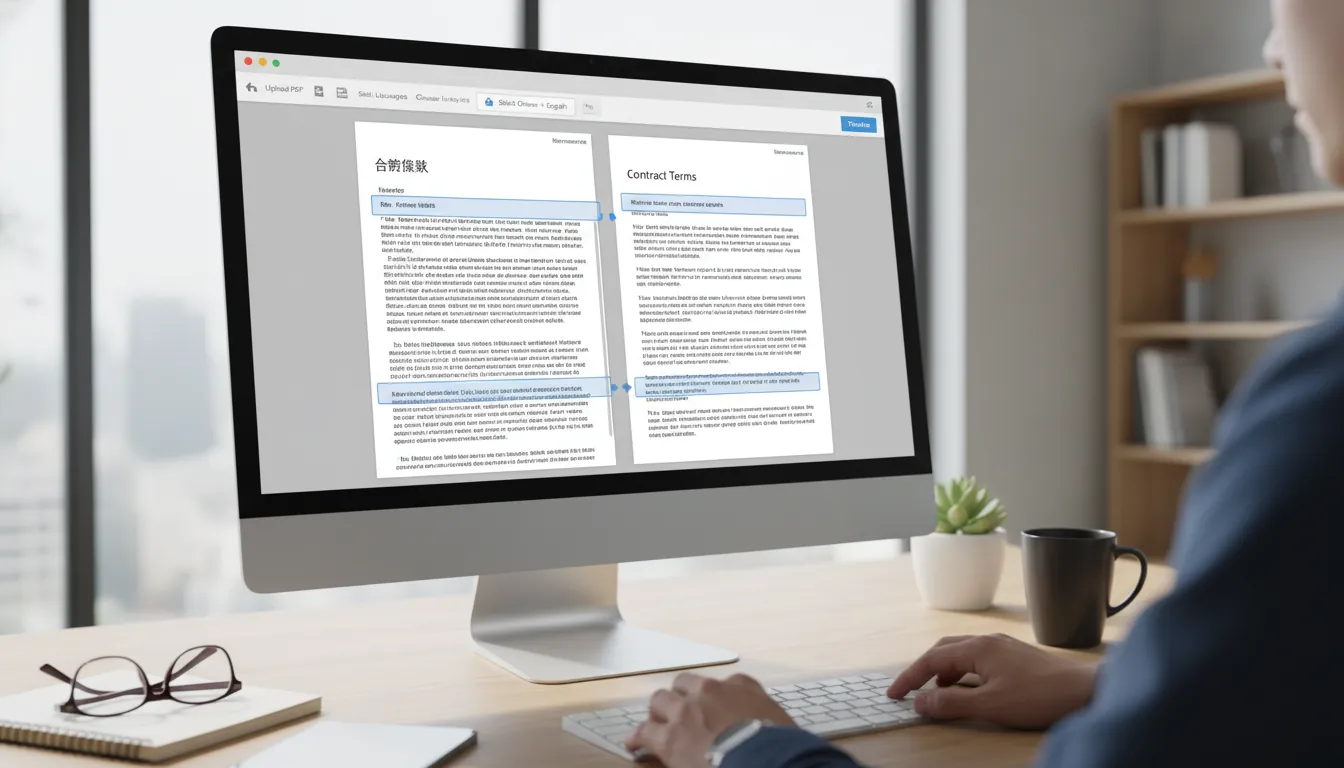
Meet the PDF Translator - a powerful Python tool that automatically translates PDF documents to Traditional Chinese while preserving the original formatting, fonts, colors, and layout. Whether you're working with technical manuals, reports, or any other PDF documents, this tool ensures your translated documents maintain their professional appearance.
Key Features
🎯 Automatic Language Detection
The tool intelligently detects the source language of text in your PDF. Whether your document is in English, Japanese, French, German, Spanish, or any other supported language, the tool will automatically identify it and translate accordingly.
✨ Format Preservation
Unlike other translation tools that extract text and lose formatting, this tool preserves: - Font styles and sizes - Original typography is maintained - Colors - Text colors remain unchanged - Layout - Document structure and positioning are preserved - Images and graphics - Visual elements stay intact
🚀 Smart Translation
- Intelligent skipping - Automatically skips text that's already in Chinese
- Translation caching - Avoids duplicate API calls for identical text
- Language detection caching - Speeds up processing of similar documents
🔧 Multiple Translation Services
- Google Translate (default) - Free to use, no API key required
- OpenAI API - Higher quality translations with paid API key
Installation
Prerequisites
- Python 3.7 or higher
- pip package manager
Step 1: Clone or Download the Repository
git clone <repository-url>
cd translation-pdf
Or download the project files directly.
Step 2: Install Dependencies
pip install -r requirements.txt
This will install:
- PyMuPDF - PDF manipulation library
- deep-translator - Google Translate integration (no httpx conflicts)
- langdetect - Automatic language detection
- Other required dependencies
Step 3: Optional - Install OpenAI Support
If you want to use OpenAI for higher quality translations:
pip install openai
Usage
Basic Usage
The simplest way to translate a PDF:
python pdf_translator.py input.pdf
This will automatically:
1. Detect the language of text in the PDF
2. Translate non-Chinese text to Traditional Chinese
3. Generate an output file named input_zh-TW.pdf
Specify Output File
To control the output filename:
python pdf_translator.py input.pdf -o translated_output.pdf
Use OpenAI API
For higher quality translations using OpenAI:
python pdf_translator.py input.pdf --service openai --api-key YOUR_API_KEY
Or set it as an environment variable:
export OPENAI_API_KEY=your_api_key_here
python pdf_translator.py input.pdf --service openai
Disable Auto Language Detection
If you prefer to use Google Translate's built-in auto-detection:
python pdf_translator.py input.pdf --no-auto-detect
Translate Image Text (Future Feature)
For OCR-based image text translation:
python pdf_translator.py input.pdf --translate-images
Note: This requires additional OCR setup with pytesseract.
How It Works
1. Document Analysis
The tool uses PyMuPDF to extract text blocks from the PDF while preserving their position and formatting information (font, size, color, etc.).
2. Language Detection
For each text block, the tool uses langdetect to identify the source language. Text already in Chinese is automatically skipped.
3. Translation
Using the detected language (or Google Translate's auto-detection), the text is translated to Traditional Chinese. The translation service can be configured (Google Translate or OpenAI).
4. Format Preservation
The original text is replaced with the translated text at the exact same position, maintaining: - Font size and style - Text color - Positioning - Layout structure
5. Output Generation
The translated PDF is saved with all formatting intact.
Example Workflow
Let's say you have a technical manual activa_220_230_240_EN.pdf:
# Step 1: Translate the PDF
python pdf_translator.py activa_220_230_240_EN.pdf

# Step 2: Check the output
# Output file: activa_220_230_240_EN_zh-TW.pdf

# The translated PDF will have:
# - All English text converted to Traditional Chinese
# - Original formatting preserved
# - Images and graphics unchanged
# - Professional appearance maintained
Supported Languages
The tool automatically detects and translates from many languages, including:
- English (en)
- Japanese (ja)
- French (fr)
- German (de)
- Spanish (es)
- Italian (it)
- Portuguese (pt)
- Korean (ko)
- Russian (ru)
- And many more...
All languages are automatically translated to Traditional Chinese (zh-TW).
Configuration
You can customize the tool by editing config.py:
# Translation service: 'google' or 'openai'
TRANSLATION_SERVICE = "google"

# OpenAI API key (if using OpenAI)
OPENAI_API_KEY = ""

# Output filename suffix
OUTPUT_SUFFIX = "_zh-TW"

# API delay (seconds between calls)
API_DELAY = 0.1
Troubleshooting
Translation Fails
- Check your internet connection
- Verify API key is correct (if using OpenAI)
- Ensure the PDF file is not corrupted
Formatting Issues
- Some complex PDF formats may not preserve perfectly
- Try using a different translation service
- Check if the PDF uses embedded fonts
Chinese Characters Not Displaying
- Ensure your system supports Traditional Chinese fonts
- Check PDF encoding settings
Language Detection Errors
- Short text blocks may not detect accurately
- Use
--no-auto-detectto fall back to Google Translate's auto-detection
Technical Details
Libraries Used
- PyMuPDF (fitz): Powerful PDF manipulation library for text extraction and modification
- deep-translator: Google Translate integration without httpx dependency conflicts
- langdetect: Language detection library ported from Google's language-detection
- OpenAI API: Optional high-quality translation service
Architecture
- Object-oriented design with
PDFTranslatorclass - Caching mechanisms for translations and language detection
- Error handling and fallback strategies
- Support for multiple translation backends
Use Cases
Technical Documentation
Translate technical manuals, user guides, and specifications while maintaining precise formatting.
Business Documents
Convert reports, presentations, and proposals to Traditional Chinese without losing professional appearance.
Academic Papers
Translate research papers and academic documents while preserving citations, equations, and formatting.
Multilingual Content
Handle PDFs with mixed languages - the tool detects and translates each language appropriately.
Limitations
- Complex Layouts: Very complex PDFs with intricate layouts may require manual adjustments
- Scanned PDFs: Image-based PDFs require OCR setup for text extraction
- Custom Fonts: PDFs using rare custom fonts may display differently
- Rate Limits: Free translation services have usage limits
Future Enhancements
- OCR integration for scanned PDFs
- Support for Simplified Chinese
- Batch processing multiple PDFs
- GUI interface
- Translation quality improvements
- Custom font embedding
Contributing
Contributions are welcome! If you have suggestions or improvements:
- Fork the repository
- Create a feature branch
- Make your changes
- Submit a pull request
License
This tool is for personal use. Please comply with the terms of service of the translation services used.
Conclusion
The PDF Translator tool bridges the gap between automated translation and document formatting. It's perfect for anyone who needs to translate PDF documents to Traditional Chinese while maintaining professional appearance and readability.
Whether you're a business professional, researcher, or content creator, this tool can save you hours of manual work while ensuring your translated documents look as professional as the originals.
Get started today and experience the power of intelligent PDF translation with format preservation!
Quick Reference
# Basic translation
python pdf_translator.py document.pdf

# Custom output
python pdf_translator.py document.pdf -o output.pdf

# Use OpenAI
python pdf_translator.py document.pdf --service openai --api-key KEY

# Disable auto-detection
python pdf_translator.py document.pdf --no-auto-detect
For more information, visit the project repository or check the README.md file.
Project Information
- Python
- Published: 2025-11-02
- 156 views
- Visit Website