Complete User Guide: Real-Time Chat Application
Case Details
Introduction
Welcome to our modern, real-time chat application! This guide will walk you through all the features and help you get the most out of your chatting experience. Whether you're a new user or looking to explore advanced features, this comprehensive guide has everything you need.
Table of Contents
- Getting Started
- Authentication
- Chat Rooms
- Messaging
- User Management
- Settings & Profile
- Search Functionality
- Tips & Best Practices
Getting Started
System Requirements
- A modern web browser (Chrome, Firefox, Safari, or Edge)
- An active internet connection
- JavaScript enabled
First-Time Access
- Open the chat application in your web browser
- You'll see the login screen with a dark theme
- If you're new, click "Register" to create an account
- If you already have an account, proceed to login
Authentication
Creating an Account (Registration)
- Click "Register" on the login screen
- Fill in your details:
- Display Name: Choose a name that will be visible to other users
- Email Address: Your email will be used for login (partially masked for privacy)
- Password: Create a secure password
- Click "Register" to create your account
- You'll be automatically logged in and redirected to the chat interface
Logging In
- Enter your credentials:
- Email address
- Password
- Complete the verification code (simple math problem)
- Click "Login"
- You'll be taken to the main chat interface
Logging Out
- Click the logout icon (door icon) in the bottom-left corner of the sidebar
- Your session will end and you'll be returned to the login screen
Chat Rooms
Understanding Rooms
Rooms are chat spaces where multiple users can communicate. There are two types:
- Public Rooms: Open to everyone, no password required
- Private Rooms: Protected by a password, only accessible to authorized users
Viewing Available Rooms
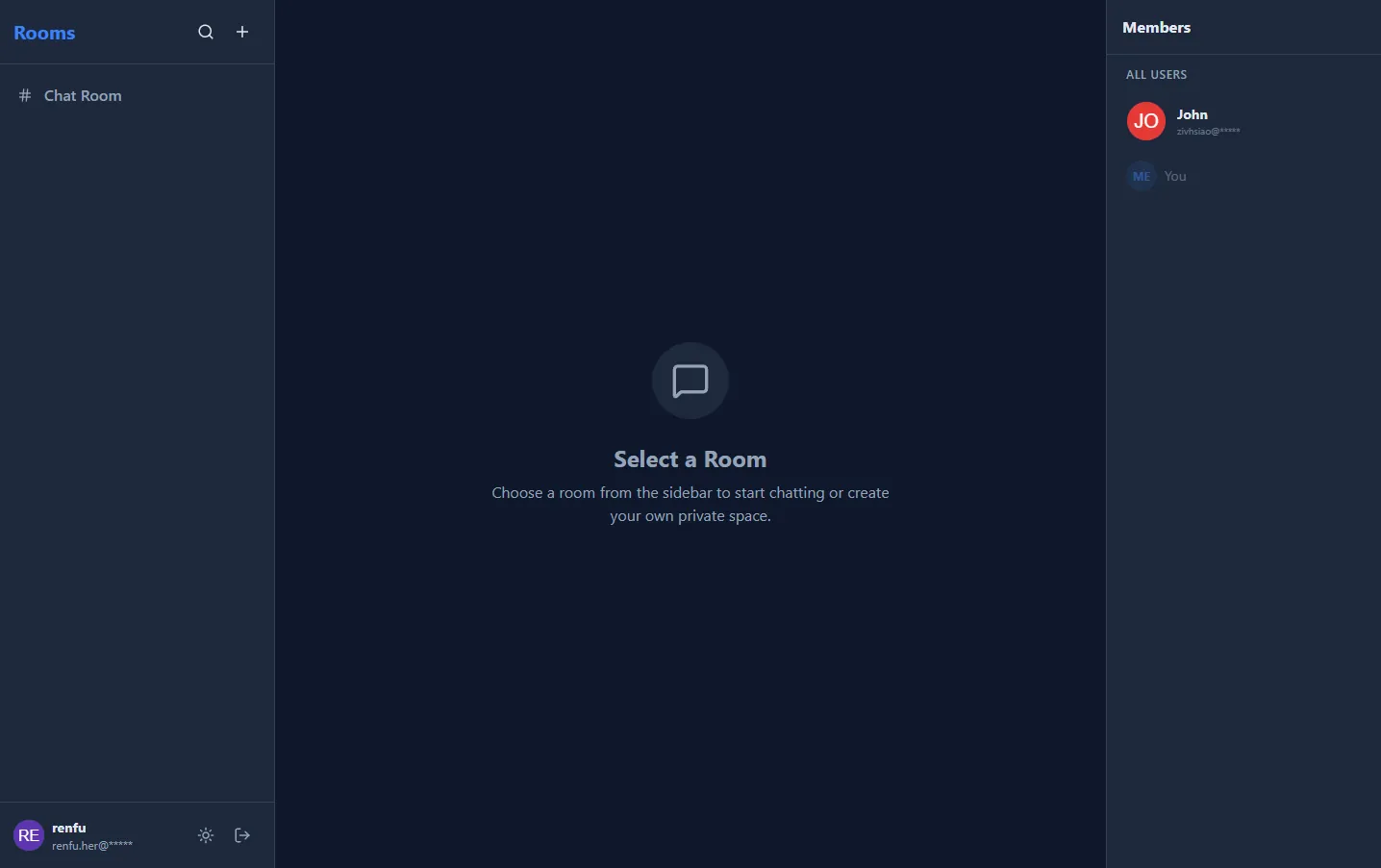
- The left sidebar displays all available rooms
- Each room shows:
- Room name with a
#icon (public) or🔒icon (private) - Highlighted when you're currently in that room
Joining a Room
- Click on any room in the sidebar
- For public rooms: You'll enter immediately
- For private rooms:
- A password prompt will appear
- Enter the correct password
- Click "Enter Room"
- If the password is incorrect, you'll see an error message
Creating a New Room
- Click the "+" icon at the top of the rooms sidebar
- Fill in the room details:
- Room Name: Choose a descriptive name
- Private Room: Check this box if you want to password-protect the room
- Password: Required if creating a private room
- Click "Create"
- The new room will appear in your rooms list
- You'll automatically join the room as the creator
Room Management (Creators Only)
As a room creator, you have additional privileges:
- Delete Room: Hover over your room and click the trash icon that appears
- Update Room: Update room name, description, or password (coming soon)
Note: Only the room creator can delete or modify their rooms.
Messaging
Sending Text Messages
- Join a room (see Joining a Room)
- Type your message in the input field at the bottom
- Press Enter or click the Send button (paper plane icon)
- Your message will appear in the chat with:
- Your avatar
- Your display name
- Timestamp
Sending Images
- Click the image icon (📷) next to the message input
- Select an image file from your device
- The image will be automatically converted to WebP format for optimal performance
- The image will appear in the chat once uploaded
Image Features: - Automatic WebP conversion for smaller file sizes - Maximum display height of 256px for better chat flow - Images are displayed inline with messages
Viewing Messages
- Messages are displayed in chronological order
- Your messages appear on the right with a blue background
- Other users' messages appear on the left with a gray background
- Each message shows:
- Sender's avatar
- Sender's name
- Message content (text or image)
- Timestamp
Message Filtering
- Messages from blocked users are automatically hidden
- You won't see any content from users you've blocked
User Management
Viewing Members
The right sidebar shows all members in the chat application:
- My Favorites: Users you've marked as favorites (starred)
- All Users: Complete list of all registered users
- You: Your own profile at the bottom
User Status Indicators
- Green dot: User is currently online
- No dot: User is offline
Adding to Favorites
- Hover over a user in the members list
- Click the star icon (⭐)
- The user will be moved to your "My Favorites" section
- The star icon will turn yellow to indicate favorite status
Removing from Favorites
- Hover over a favorited user
- Click the yellow star icon again
- The user will be removed from favorites
Blocking Users
- Hover over a user in the members list
- Click the ban icon (🚫)
- Confirm the action in the popup
- The user will be:
- Removed from your members list
- Moved to your "Block Members" list in Settings
- All their messages will be hidden from you
Unblocking Users
- Open Settings (gear icon in bottom-left)
- Click "Block Members" section
- Click "Unblock" next to the user you want to unblock
- The user will reappear in your members list
Settings & Profile
Accessing Settings
- Click your profile area in the bottom-left corner of the sidebar
- Or click the Settings icon (⚙️) if available
Profile Management
Updating Your Display Name
- Open Settings → My Profile
- Edit the Display Name field
- Click "Save Changes"
Changing Your Avatar
- Open Settings → My Profile
- Click on your current avatar
- Select a new image from your device
- The image will be automatically converted to WebP format
- Click "Save Changes"
Changing Your Password
- Open Settings → My Profile
- Enter your new password in the "New Password" field
- Leave blank if you don't want to change it
- Click "Save Changes"
Note: Your email address cannot be changed (read-only).
Blocked Members Management
- Open Settings → Block Members
- View all users you've blocked
- Click "Unblock" to remove a user from your block list
- Unblocked users will reappear in your members list
Feedback & Support
- Open Settings → Feedback & Support
- Select feedback type:
- General Feedback / Usage
- Report a Bug / Issue
- Report a User
- Enter your feedback in the details field
- Click "Create Email"
- Your default email client will open with a pre-filled message
Search Functionality
Accessing Search
- Click the search icon (🔍) at the top of the rooms sidebar
- A search modal will appear
Searching Users
- Select the "Users" tab in the search modal
- Type a name or email in the search box
- Results will appear in real-time as you type
- Click the star icon next to a user to add them to favorites
- Click outside the modal or press Escape to close
Searching Chat History
- Select the "Chat History" tab in the search modal
- Type at least 3 characters in the search box
- Results will show:
- Room name where the message was sent
- Sender's name and avatar
- Message content (preview)
- Date of the message
- Click on a result to jump to that room and view the full context
- The search modal will close automatically
Search Tips: - Minimum 3 characters required for message search - Search is case-insensitive - Results are limited to the last 50 matching messages
Tips & Best Practices
General Tips
- Keep Your Profile Updated: A clear display name and avatar help others identify you
- Use Private Rooms for Sensitive Conversations: Create private rooms with passwords for confidential discussions
- Organize with Favorites: Mark frequently contacted users as favorites for quick access
- Report Issues: Use the Feedback & Support feature to report bugs or problematic users
Privacy & Safety
- Block Unwanted Users: Don't hesitate to block users who are causing problems
- Private Room Passwords: Use strong, unique passwords for private rooms
- Email Privacy: Your email is partially masked (e.g.,
user@*****) for privacy
Performance Tips
- Image Optimization: Images are automatically converted to WebP, but try to use reasonably sized images
- Connection Status: The green dot indicates you're online and connected
- Real-Time Updates: All changes (new messages, user status, room updates) happen in real-time
Keyboard Shortcuts
- Enter: Send message
- Escape: Close modals
- Click outside modal: Close search/settings
Mobile Usage
- The interface is fully responsive
- On mobile devices:
- Use the menu icon (☰) to toggle the rooms sidebar
- Use the user icon (👤) to toggle the members sidebar
- Tap outside sidebars to close them
Troubleshooting
Can't See Messages
- Check if you're in the correct room: Look for the highlighted room in the sidebar
- Verify your connection: Check if the green dot is showing (you're online)
- Refresh the page: Sometimes a refresh resolves connection issues
Can't Join a Private Room
- Verify the password: Make sure you're entering the correct password
- Contact the room creator: Only the creator can share the password
User Status Not Updating
- Wait a few seconds: Status updates happen in real-time but may take a moment
- Check your connection: Ensure you have a stable internet connection
- Refresh the page: If status seems stuck, try refreshing
Images Not Uploading
- Check file size: Very large images may take longer to process
- Verify file type: Only image files are supported
- Try again: Sometimes network issues can cause upload failures
Can't See Other Users
- Check if they're blocked: Blocked users won't appear in your members list
- Verify they're registered: Only registered users appear in the members list
- Check connection: Ensure both you and they are online (green dot)
Advanced Features
Real-Time Status Monitoring
- Online Status: See who's online in real-time with green indicators
- Automatic Updates: User status updates automatically when they log in or out
- Connection Status: Your own connection status is reflected in your profile
Room-Based Messaging
- Targeted Communication: Messages are only sent to users in the same room
- Efficient Delivery: The system optimizes message delivery to relevant users only
- Room Isolation: Each room maintains its own message history
Multi-Device Support
- Multiple Connections: You can be logged in from multiple devices simultaneously
- Synchronized Status: Your online status is consistent across all devices
- Real-Time Sync: Messages and updates sync across all your devices
Frequently Asked Questions (FAQ)
Q: Can I change my email address?
A: No, email addresses cannot be changed after registration. This ensures account security and prevents confusion.
Q: How do I delete my account?
A: Currently, account deletion is not available through the interface. Please contact support through the Feedback & Support feature.
Q: Can I recover deleted messages?
A: No, once a message is deleted (if this feature is available), it cannot be recovered. Be careful when deleting content.
Q: How many rooms can I create?
A: There's no limit on the number of rooms you can create. Create as many as you need!
Q: Can I be in multiple rooms at once?
A: Yes! You can switch between rooms freely. However, you can only actively chat in one room at a time.
Q: What happens if I lose my internet connection?
A: - Your messages will be queued locally - When you reconnect, the system will attempt to sync - You may need to refresh the page if the connection was lost for an extended period
Q: Are messages encrypted?
A: Messages are transmitted securely over HTTPS/WebSocket connections. However, they are stored in the database and visible to room members.
Q: Can I export my chat history?
A: Currently, chat history export is not available. Use the search feature to find specific messages.
Getting Help
In-App Support
- Settings → Feedback & Support
- Select the appropriate feedback type
- Describe your issue or question
- Submit via email
Common Issues
- Login problems: Verify your email and password, check the verification code
- Connection issues: Check your internet connection, refresh the page
- Missing features: Some features may be in development, check for updates
Conclusion
You're now equipped with all the knowledge you need to make the most of our chat application! Whether you're chatting with friends, collaborating on projects, or managing your community, these features are designed to make your experience smooth and enjoyable.
Remember: - Keep your profile updated - Use private rooms for sensitive conversations - Block users who cause problems - Provide feedback to help us improve
Happy chatting! 🎉
Version Information
- Application Version: 1.0.0
- Last Updated: November 2025
- Platform: Web-based (responsive design)
This guide covers all current features. New features may be added in future updates. Check the application for the latest features and improvements.
Project Information
- Python
- Published: 2025-11-30
- 61 views
- Visit Website